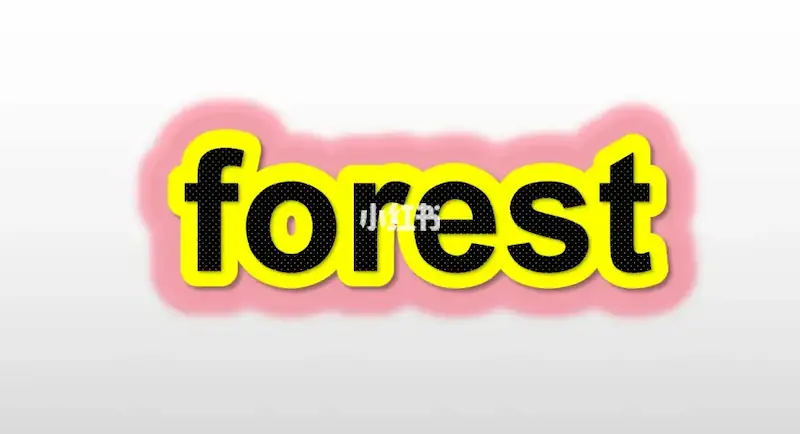

Private Sub CommandButton1_Click()
    On Error GoTo ErrorHandler

    Dim sldCurrent As Slide
    Dim shpText As shape, shpFirstBackground As shape, shpSecondBackground As shape
    Set sldCurrent = ActivePresentation.Slides(1)

    Set shpText = sldCurrent.Shapes("Text")
    Set shpFirstBackground = sldCurrent.Shapes("FirstBackground")
    Set shpSecondBackground = sldCurrent.Shapes("SecondBackground")

    If Not ValidateInputs(sldCurrent, "FirstBackgroundColor_R_Box", "FirstBackgroundColor_G_Box", _
                          "FirstBackgroundColor_B_Box", "SecondBackgroundColor_R_Box", _
                          "SecondBackgroundColor_G_Box", "SecondBackgroundColor_B_Box", _
                          "TextColor_R_Box", "TextColor_G_Box", "TextColor_B_Box", "FontSizeBox") Then
        MsgBox "文字大小、背景颜色输入框请输入数字"
        Exit Sub
    End If

    Dim intFontSize As Integer, strText As String
    Dim lngTextColor As Long, lngFirstBgColor As Long, lngSecondBgColor As Long

    intFontSize = GetInputAsInteger(sldCurrent, "FontSizeBox")
    strText = GetInputAsString(sldCurrent, "TextBox")

    lngTextColor = GetColorFromInputs(sldCurrent, "TextColor")
    lngFirstBgColor = GetColorFromInputs(sldCurrent, "FirstBackgroundColor")
    lngSecondBgColor = GetColorFromInputs(sldCurrent, "SecondBackgroundColor")

    InitializeShape shpText, strText, intFontSize, lngTextColor
    InitializeShape shpFirstBackground, strText, intFontSize, lngFirstBgColor, 25
    InitializeShape shpSecondBackground, strText, intFontSize, lngSecondBgColor, 50

    With sldCurrent.Shapes.Range(Array(shpText.Name, shpFirstBackground.Name, shpSecondBackground.Name)).Group
        .Copy
        .Ungroup
    End With

    Exit Sub

ErrorHandler:
    HandleError
End Sub

Private Sub HandleError()
    MsgBox "发生错误: " & Err.Description
End Sub

Private Function ValidateInputs(sldCurrent As Slide, ParamArray arrShapeNames() As Variant) As Boolean
    Dim shp As shape
    For Each shp In sldCurrent.Shapes.Range(arrShapeNames)
        If Not IsNumeric(shp.OLEFormat.Object.text) Then
            ValidateInputs = False
            Exit Function
        End If
    Next shp
    ValidateInputs = True
End Function

Private Function GetColorFromInputs(sldCurrent As Slide, strColorPrefix As String) As Long
    GetColorFromInputs = RGB(GetInputAsInteger(sldCurrent, strColorPrefix & "_R_Box"), _
                             GetInputAsInteger(sldCurrent, strColorPrefix & "_G_Box"), _
                             GetInputAsInteger(sldCurrent, strColorPrefix & "_B_Box"))
End Function

Private Function GetInputAsInteger(sldCurrent As Slide, strShapeName As String) As Integer
    GetInputAsInteger = CInt(sldCurrent.Shapes(strShapeName).OLEFormat.Object.text)
End Function

Private Function GetInputAsString(sldCurrent As Slide, strShapeName As String) As String
    GetInputAsString = sldCurrent.Shapes(strShapeName).OLEFormat.Object.text
End Function

Private Sub InitializeShape(shp As shape, strText As String, intFontSize As Integer, lngColor As Long, Optional intLineWeight As Integer = 0)
    ApplyTextSettings shp, strText, intFontSize, lngColor, intLineWeight
End Sub

Private Sub ApplyTextSettings(shpTarget As shape, strText As String, intFontSize As Integer, lngTextColor As Long, Optional intLineWeight As Integer = 0)
    With shpTarget
        If .HasTextFrame Then
            With .TextFrame.TextRange
                .text = strText
                .Font.Size = intFontSize
                .Font.Color.RGB = lngTextColor
            End With

            .TextFrame.WordWrap = msoTrue
            .TextFrame.AutoSize = ppAutoSizeShapeToFitText
        End If

        If intLineWeight > 0 Then
            With .TextFrame2.TextRange.Font.Line
                .Visible = msoTrue
                .ForeColor.RGB = lngTextColor
                .Transparency = 0
                .Weight = intLineWeight
            End With
        End If
    End With
End Sub

Private Sub CommandButton2_Click()
    On Error GoTo ErrorHandler

    Dim sldCurrent As Slide
    Set sldCurrent = ActivePresentation.Slides(1)

    InitializeSlideShapes sldCurrent
    MsgBox "初始化完成"

    Exit Sub

ErrorHandler:
    HandleError
End Sub

Private Sub InitializeTextInputs(sldCurrent As Slide)
    With sldCurrent
        .Shapes("TextBox").OLEFormat.Object.text = "Hello, World!"
        .Shapes("FontSizeBox").OLEFormat.Object.text = 60
    End With
End Sub

Private Sub InitializeColorInputs(sldCurrent As Slide)
    With sldCurrent
        .Shapes("TextColor_R_Box").OLEFormat.Object.text = 0
        .Shapes("TextColor_G_Box").OLEFormat.Object.text = 0
        .Shapes("TextColor_B_Box").OLEFormat.Object.text = 0

        .Shapes("FirstBackgroundColor_R_Box").OLEFormat.Object.text = 255
        .Shapes("FirstBackgroundColor_G_Box").OLEFormat.Object.text = 255
        .Shapes("FirstBackgroundColor_B_Box").OLEFormat.Object.text = 255

        .Shapes("SecondBackgroundColor_R_Box").OLEFormat.Object.text = 39
        .Shapes("SecondBackgroundColor_G_Box").OLEFormat.Object.text = 154
        .Shapes("SecondBackgroundColor_B_Box").OLEFormat.Object.text = 225
    End With
End Sub

Private Sub InitializeSlideShapes(sldCurrent As Slide)
    InitializeTextInputs sldCurrent
    InitializeColorInputs sldCurrent

    InitializeShape sldCurrent.Shapes("Text"), "Hello, World!", 60, RGB(0, 0, 0)
    InitializeShape sldCurrent.Shapes("FirstBackground"), "Hello, World!", 60, RGB(255, 255, 255), 25
    InitializeShape sldCurrent.Shapes("SecondBackground"), "Hello, World!", 60, RGB(39, 154, 225), 50
End Sub