由于网站的服务器在国内,导致国外访问速度非常缓慢。将国内外的解析请求分离开,国内访问走国内线路,而国外访问走 Cloudflare,可以有效提高国外访问的速度。
需要准备的东西如下
一个 Cloudflare 账号、一个绑定了银行卡的 PayPal 账号(用作开通免费的 Cloudflare for SaaS,所以银行卡没有余额也可以)、一点点时间
注册一个用于中继的域名
首先来到 EU.org 注册一个免费的二级域名。
进去之后请忽略网站极简的设计风格,点击 Sign-in or sign-up here! -> Register 来注册一个账号。需要填写的项有:Name、E-mail、Address (line 1)、Address (line 2)、Country、Password、Confirm Password。填写完后勾上我已阅读并接受域名政策的选项即可完成账号注册。
Important需要注意的是,Name 这一项似乎需要加一个空格且不能有数字,比如填写
Vinking会出现 Enter a valid value. 错误,而填写Vinking loma可以通过验证。另外 Address (line 1)、Address (line 2) 可以乱写,但是不能空着。
接着邮箱会收到一封验证邮件:
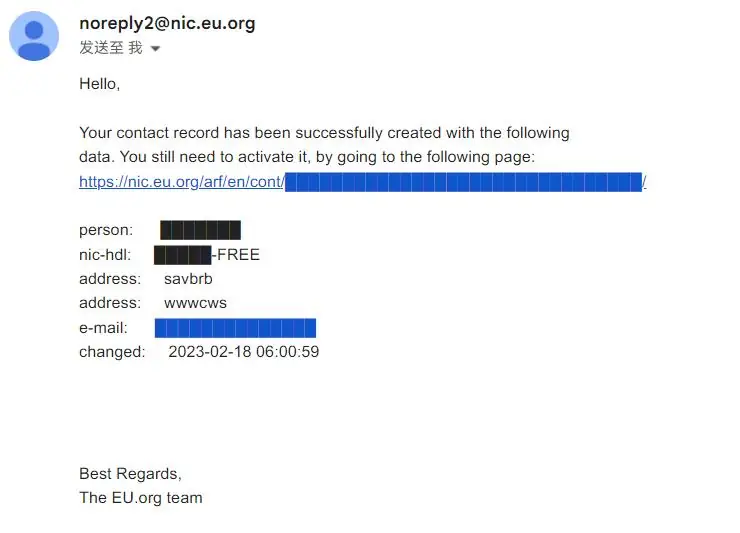
验证邮件
点击 nic.eu.org/arf/XXX 这个链接去验证邮箱。完成后复制邮箱中 nic-hdl 后面的 XXX-FREE 填入登录页的 Handle 文本框,密码就是刚才设定的密码。
登陆后点击 New Domain 注册域名,首先填写 Complete domain name(想要注册的域名,可以点击下面的 list 来查看可用的域名后缀)。这里将以申请免费的域名 vinkingtest.eu.org 为例以方便后面的介绍。
接着我们需要先去到 Cloudflare 添加站点(此时域名还没有完成注册,所以请不要关闭注册域名的页面)。
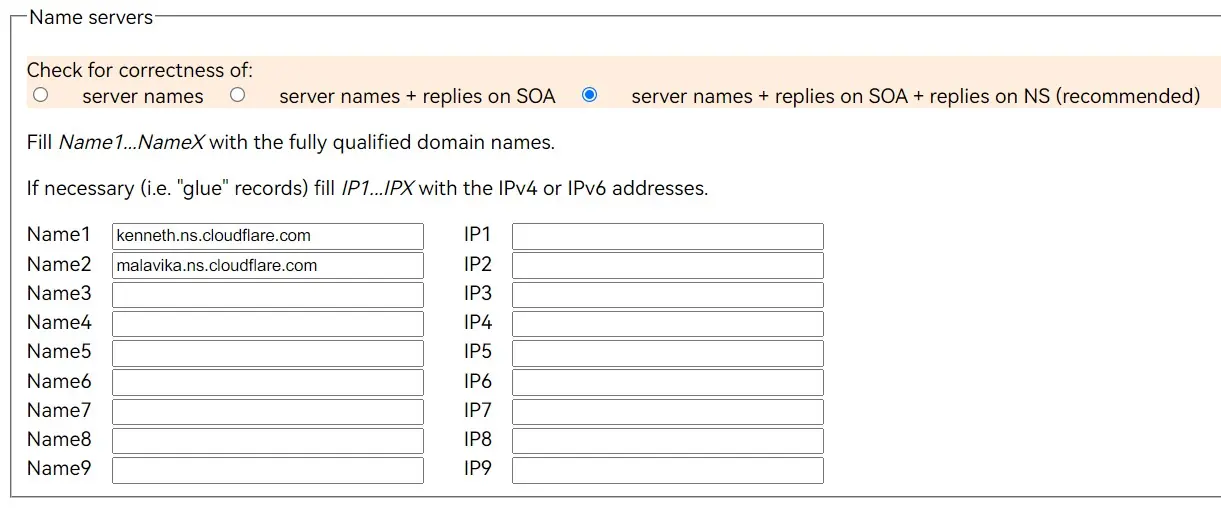
点击添加站点 -> 填入刚才需要申请的域名(例如这里是 vinkingtest.eu.org) -> 选择免费计划 -> 跳过添加 DNS 记录,最后会得到两个 Cloudflare 的名称服务器 kenneth.ns.cloudflare.com 和 malavika.ns.cloudflare.com。
回到刚才申请域名页面,将他们分别填入到最下面的 Name servers 的 Name1 和 Name2 中,点击 Submit 后如果出现 No error, applying changes... Done 就证明已经完成域名的注册。而 Cloudflare 需要点击完成,检查名称服务器完成域名接入。
DNS 记录
等待
EU.org 需要一段时间来完成域名注册,短则十几分钟长则一个星期。我个人等了大概两三个小时就收到了域名注册成功的邮件,同时 Cloudflare 也会发送一条域名成功激活的邮件,这时就可以来到下一步了。
解析子域名
首先 Cloudflare 进入刚才申请的免费域名,点击 DNS,添加一个子域名的解析,这个子域名将会用作中转域名。具体可以参照下面的设置填写,这里以名称填写 i 为例:

DNS 设置
SaaS 接入
接着在 SSL/TLS 的 自定义主机名 中 启用 Cloudflare for SaaS,这里需要绑定 PayPal 的银行卡进行订阅。Cloudflare for SaaS 免费提供一百个自定义主机名,对于个人用户来说已经足够了,而对于超过一百个的部分,价格则是 $0.1/个/月。

Cloudflare for SaaS 账单
Note如果需要取消订阅,点击右上角的个人资料图标 -> 账单 -> 订阅 -> 取消 即可
开启 SaaS 后,添加一个 回退源。回退源就是刚才解析的子域名,那么我这里的回退源就是 i.vinkingtest.eu.org。添加后没有意外的话回退源状态会显示有效。
接着点击 添加自定义主机名 ,自定义主机名填写的是你的网站名,这里以 vinking.top 为例,另外如果你的网站不需要适配 IE6 等落后的浏览器建议将 最低 TLS 版本 设置成 TLS 1.1 或以上以提高安全性,具体可以参照以下设置填写:

添加自定义主机名
完成添加自定义主机名的设置后会得到 证书验证 和 主机名预验证 这两条记录。接下来需要在你的网站域名服务商(腾讯云、阿里云之类的)那里加上两条对应的解析。

DNS 设置
域名服务商接入
当 证书验证 和 主机名预验证 这两条记录在 Cloudflare 的验证完成(证书状态和主机名状态都显示有效)后,我们还需要在域名服务商加上一条解析请求来源为 境外 ,记录值为 回退源 (这里是 i.vinkingtest.eu.org)的 CNAME 记录。至此,我们的域名 DNS 解析中就会有两条 CNAME 记录,用来对不同的请求来源做出不同的解析。

DNS 解析
如果我们使用国外 IP 访问网站的时候,当出现下面这个页面就证明解析成功了。

国外 IP 解析成功